Exercise Information Sheet
Where is the ChemGate Web Page?
The ChemGate Web Page is located at
Fall 1997: http://www.columbia.edu/itc/chemistry/chem-c1403/chemgate/index.html
Spring 1998: http://www.columbia.edu/itc/chemistry/chem-c1404/chemgate/index.html
After Netscape is available on the screen, type the above URL in the
Location Toolbar. When the ChemGate web page appears within Netscape,
click on Bookmarks, then click on Add Bookmark to permanently save this location.
The next time you use Netscape, click on Bookmarks, then click on the
ChemGate web page location immediately.
Exercise Reminder
Please note: the properties for all atoms and molecules are already precalculated
within Spartan.
Students should read the desired atom or molecule into Spartan and observe the
results needed to perform the individual exercise.
Spartan Shortcuts
The Exercise Shortcuts represent quick and easy directions for using
Spartan in solving the exercises assigned for this semester
Accessing Spartan
On the Toolchest Icon select Apps,
move the cursor to Spartan
and click on the selection with the left mouse button.
The Spartan window will then appear on the screen.
Another way to bring up the Spartan window is to select Desktop on the
Toolchest Icon. Move the cursor to Unix shell and click on it with
the left mouse button.
A "Unix shell" will appear. This is really a window for typing commands.
Move the cursor into the window and then type spartan.
The Spartan window will then appear on the screen.
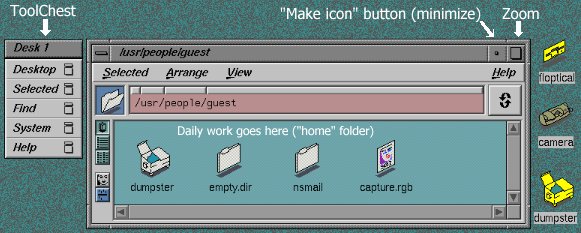
Schematic Representation of a Typical Student Desktop
Changing The Directory Within Spartan
-
Click on File, then click on Open
An Open Dialog: window will appear.
-
In the Open Dialog: window, next to Directory:
click on the square bubble and choose /usr
- DoubleClick sequentially each of the following directories in the
Open Dialog: window: /local ==> /chemistry ==> /ChemGate_Fall97
Reading Atoms or Molecules Into Spartan
The following sequence assumes that Spartan is pointing to the directory:
/usr/local/chemistry/ChemGate_Fall97
-
Click on File, then click on Open
An Open Dialog: window will appear displaying the list of atoms and molecules in this subdirectory.
-
In the Open Dialog: window, DoubleClick on the atom or molecule to be read.
It will then appear on the main Spartan window, and the title of this window will change
from SPARTAN: graphical user interface to SPARTAN: name of atom or molecule.
Displaying Electron Density Surfaces
-
Click on the pull-down Display menu, then click on Surfaces.
A Display Surfaces Dialog: window will appear.
-
DoubleClick on one of the items that begins with surface= ...
The option Display Surface will be activated.
-
Click on Display Surface.
-
Click on either Dots, Mesh, Solid, Transparent below the Style Box.
-
Click on OK, and the Electron Density Surface will be displayed.
Displaying Geometries of Molecules
-
Click on the pull-down Geometry menu.
- Distance ---> obtain bond distance
- Angle ---> obtain bond angle
- Dihedral ---> obtain dihedral angles
Displaying Electrostatic Potential Energy Surfaces
-
Click on the pull-down Display menu, then click on Surfaces.
A Display Surfaces Dialog: window will appear.
-
DoubleClick on one of the items that begins with surface= ...
The option Display Surface will be activated.
-
Click on Display Surface, then click on Map Property.
-
Click on either Dots, Mesh, Solid, Transparent below the Style Box.
-
Click on OK, and the Electrostatic Potential Surface will be displayed.
NOTE: The colors indicate values of the electrostatic potential evaluated on the surface;
colors near RED correspond to Negative Potential
(a stabilizing interaction between the molecule and a postive test charge)
while colors near BLUE correspond to Positive Potential
(a destabilizing interaction between the molecule and a positive test charge).
Displaying Atomic and Molecular Orbitals
-
Click on the pull-down Display menu, then click on Surfaces.
A Display Surfaces Dialog: window will appear.
-
DoubleClick on one of the items that begins with surface= ...
The option Display Surface will be activated.
-
Click on Display Surface.
-
Click on either Dots, Mesh, Solid, Transparent below the Style Box.
-
Click on OK, and the Atomic Orbital or Molecular Orbital will be displayed.
Displaying Charges on Specific Atoms in a Molecule
-
Click on the pull-down Display menu, then click on Properties.
Another pull-down menu will appear.
-
Click on Charge, and then click on specific atoms to obtain the atomic charge.
NOTE: If the Charge appears as grey (i.e. Charge),
this means that it is inactive and not available for this molecule.
Displaying Molecular Dipole Moment
-
Click on the pull-down Display menu, then click on Properties.
Another pull-down menu will appear.
-
Click on Dipole, and the dipole moment will then be displayed.
NOTE: If the Dipole appears as grey (i.e. Dipole),
this means that it is inactive and not available for this molecule.
Displaying Energies of Molecules
-
Click on the pull-down Display menu, then click on Properties.
Another pull-down menu will appear.
-
Click on Energy, and the energy will be then displayed.
NOTE: If the Energy appears as grey (i.e. Energy),
this means that it is inactive and not available for this molecule.